

Google Docs
Connect to Google Docs. Create, edit, and collaborate on documents
Connect to Google Docs. Create, edit, and collaborate on documents

Supports authentication: OAuth 2.0
Set up the agent connector
Section titled “Set up the agent connector”Register your Scalekit environment with the Google Docs connector so Scalekit handles the authentication flow and token lifecycle for you. The connection name you create will be used to identify and invoke the connection programmatically. Then complete the configuration in your application as follows:
-
Set up auth redirects
-
In Scalekit dashboard, go to Agent Auth → Create Connection. Find Google Docs and click Create.
-
Click Use your own credentials and copy the redirect URI. It looks like
https://<SCALEKIT_ENVIRONMENT_URL>/sso/v1/oauth/<CONNECTION_ID>/callback.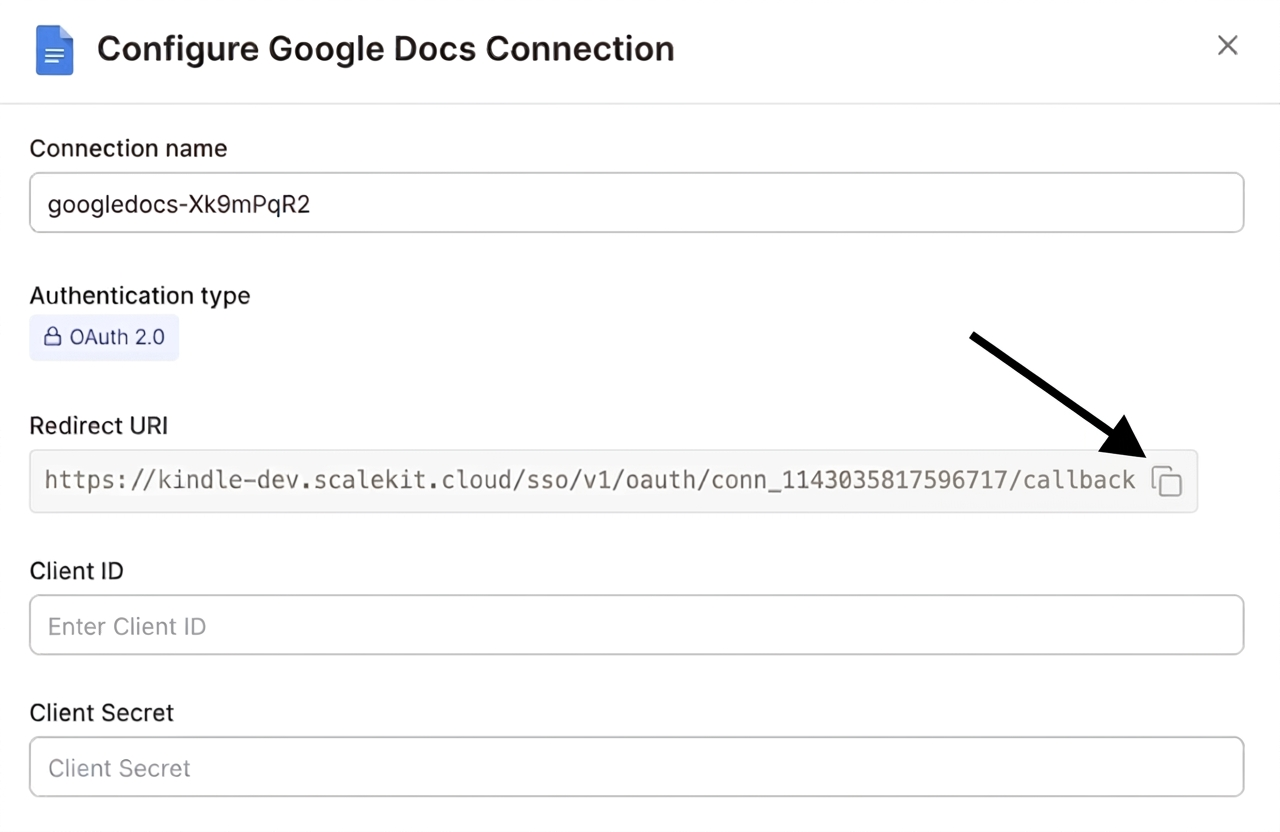
-
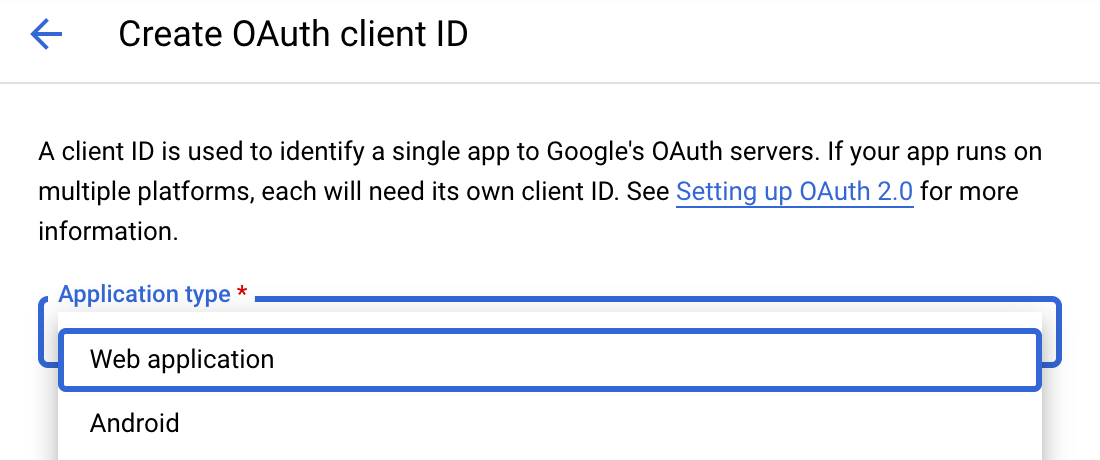
Navigate to Google Cloud Console’s APIs & Services > Credentials. Select + Create Credentials, then OAuth client ID. Choose Web application from the Application type menu.
-
Under Authorized redirect URIs, click + Add URI, paste the redirect URI, and select Create.

-
-
Enable Google Docs API
-
In Google Cloud Console, go to APIs & Services > Library. Search for “Google Docs” in the API Library and select Google Docs API.
-
Press the blue Enable button.
-
-
Get client credentials
Google provides your Client ID and Client Secret credentials after you create the OAuth client ID in step 1.
-
Add credentials in Scalekit
-
In Scalekit dashboard, go to Agent Auth → Connections and open the connection you created.
-
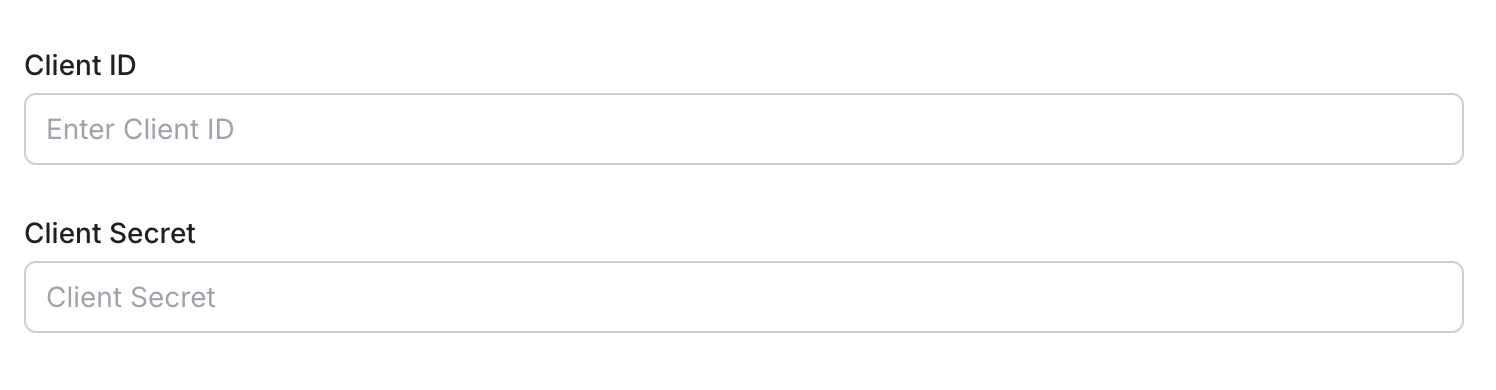
Enter your credentials:
- Client ID (from above)
- Client Secret (from above)
- Permissions (scopes — see Google API Scopes reference)
-
Click Save.
-
Connect a user’s Google Docs account and make API calls on their behalf — Scalekit handles OAuth and token management automatically.
import scalekit.client, osfrom dotenv import load_dotenvload_dotenv()
connection_name = "google_docs" # get your connection name from connection configurationsidentifier = "user_123" # your unique user identifier
# Get your credentials from app.scalekit.com → Developers → Settings → API Credentialsscalekit_client = scalekit.client.ScalekitClient( client_id=os.getenv("SCALEKIT_CLIENT_ID"), client_secret=os.getenv("SCALEKIT_CLIENT_SECRET"), env_url=os.getenv("SCALEKIT_ENV_URL"),)actions = scalekit_client.actions
# Authenticate the userlink_response = actions.get_authorization_link( connection_name=connection_name, identifier=identifier)# present this link to your user for authorization, or click it yourself for testingprint("🔗 Authorize Google Docs:", link_response.link)input("Press Enter after authorizing...")
# Make a request via Scalekit proxyresult = actions.request( connection_name=connection_name, identifier=identifier, path="/docs/v1/documents", method="GET")print(result)googledocs_create_document
Section titled “googledocs_create_document”Create a new blank Google Doc with an optional title. Returns the new document’s ID and metadata.
| Name | Type | Required | Description |
|---|---|---|---|
schema_version | string | No | Optional schema version to use for tool execution |
title | string | No | Title of the new document |
tool_version | string | No | Optional tool version to use for execution |
googledocs_read_document
Section titled “googledocs_read_document”Read the complete content and structure of a Google Doc including text, formatting, tables, and metadata.
| Name | Type | Required | Description |
|---|---|---|---|
document_id | string | Yes | The ID of the Google Doc to read |
schema_version | string | No | Optional schema version to use for tool execution |
suggestions_view_mode | string | No | How suggestions are rendered in the response |
tool_version | string | No | Optional tool version to use for execution |
googledocs_update_document
Section titled “googledocs_update_document”Update the content of an existing Google Doc using batch update requests. Supports inserting and deleting text, formatting, tables, and other document elements.
| Name | Type | Required | Description |
|---|---|---|---|
document_id | string | Yes | The ID of the Google Doc to update |
requests | array<object> | Yes | Array of update requests to apply to the document |
schema_version | string | No | Optional schema version to use for tool execution |
tool_version | string | No | Optional tool version to use for execution |
write_control | object | No | Optional write control for revision management |